

When your website or web application is ready to be published, you can publish the project in Macaly and connect your own domain name to it.
Your own domain can be used, for example, for a company website such as company.fi or for a web application subdomain such as app.company.fi.
Macaly Free uses a domain provided by Macaly. Connecting your own domain is included in a paid Macaly plan that supports custom domains, such as Macaly Pro.
1. Review the project before publishing
Go through the project in Preview before publishing it.
For a website, check at least the navigation, text, links, forms and mobile view. For a web application, also test the most important use cases, such as login, forms, saving data and moving between views when these are part of the project.
2. Publish the project in Macaly
Publish the current version of the project with Macaly’s Publish function.

Note that the Macaly editing view and the published version are separate. Changes made later must be published again before they appear in the public project.
3. Add your own domain to the project
Open the project’s domain settings and add the domain name you want to use.
Publish -> + Add domain


or Settings -> Domains
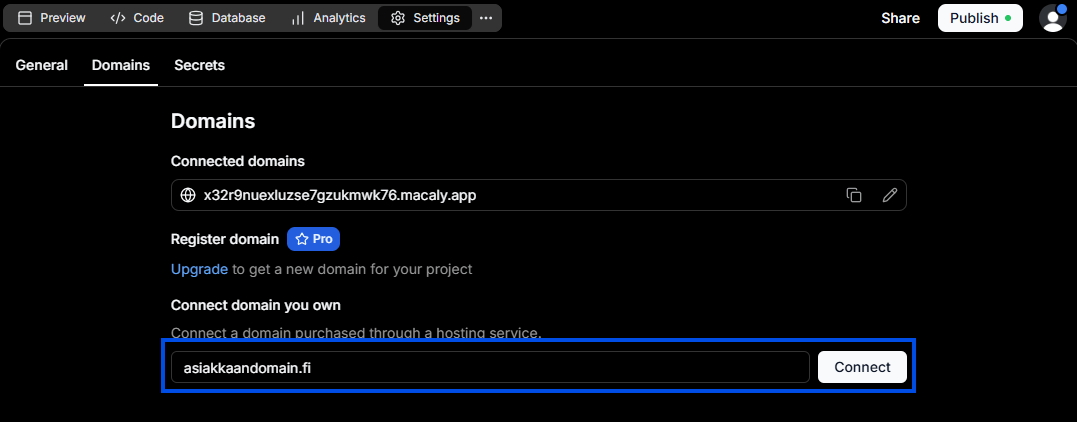
You can use a root domain such as company.fi or a subdomain such as app.company.fi, depending on the purpose of the project.
4. Check the DNS records provided by Macaly
Macaly shows the DNS records required to connect the domain. These are commonly an A record for the root domain and a CNAME record for www, but always use the current values shown in your own Macaly interface.
Do not copy DNS values from an old guide or from another project.

5. Add the DNS records in Domainhotelli
Add the records shown by Macaly in the DNS management service used by the domain’s nameservers.
If the domain uses Domainhotelli nameservers, make the changes in Domainhotelli DNS management.
For instructions on managing DNS settings in Domainhotelli, see our DNS management guide
If the domain uses another provider’s nameservers, add the DNS records in that provider’s management interface.
6. Do not change email records unnecessarily
Connecting a domain to Macaly does not require moving the email service
If the domain already uses email with Domainhotelli, Microsoft 365, Google Workspace or another provider, keep the MX records and other email-related records unchanged.
This allows the website or application to run in Macaly while email continues to work with the existing email service.
7. Wait for DNS changes to update
DNS changes do not always take effect immediately. Updating can take some time depending on the previous DNS settings and cached DNS records.
In Macaly’s domain view, the domain may remain pending until the required records are found correctly.
You can check whether the DNS records have taken effect by clicking the Refresh button in Macaly’s DNS records view.
8. Check the published project on your own domain
Once Macaly confirms the domain, open it in a browser and review the project.
Test at least:
- the root domain and any www address
- the HTTPS connection
- navigation and important links
- forms and other functions
- the most important user flows in the web application
- the mobile view
9. Republish later changes
When you continue editing the project in Macaly, the changes do not automatically replace the published version. Review the changes in Preview and publish the project again when you want them to be visible to users.
Good to remember
- Macaly Free uses a domain provided by Macaly.
- Using your own domain requires a Macaly plan that supports custom domains.
- Always use the DNS values shown for your own project in Macaly.
- DNS settings are managed wherever the domain’s nameservers are hosted.
- Website and email DNS routing are separate.
- After changes, the project may need to be published again.