

Once you have created the first version of your project, you can continue developing it with Macaly. You can edit text, images, colours, structure and user interface elements, and ask Macaly to add or change project functions. The same tools can be used for both websites and web applications.
1. Edit the project by talking to Macaly
You can make changes by telling Macaly what you want to change.
For a website, for example:
Make the main heading on the home page shorter and add a “Contact us” button below it.
For a web application, for example:
Add a new view to the dashboard where the user can see their own projects in a table.
Macaly makes the changes to the existing project, so you do not need to describe the whole project again in every message.

2. Select the element you want to edit with Edit design
With Edit design, you can select an individual element in the project and edit it more precisely.
The selected element can be, for example, text, a heading, an image, a button, a card, a section or another user interface element.

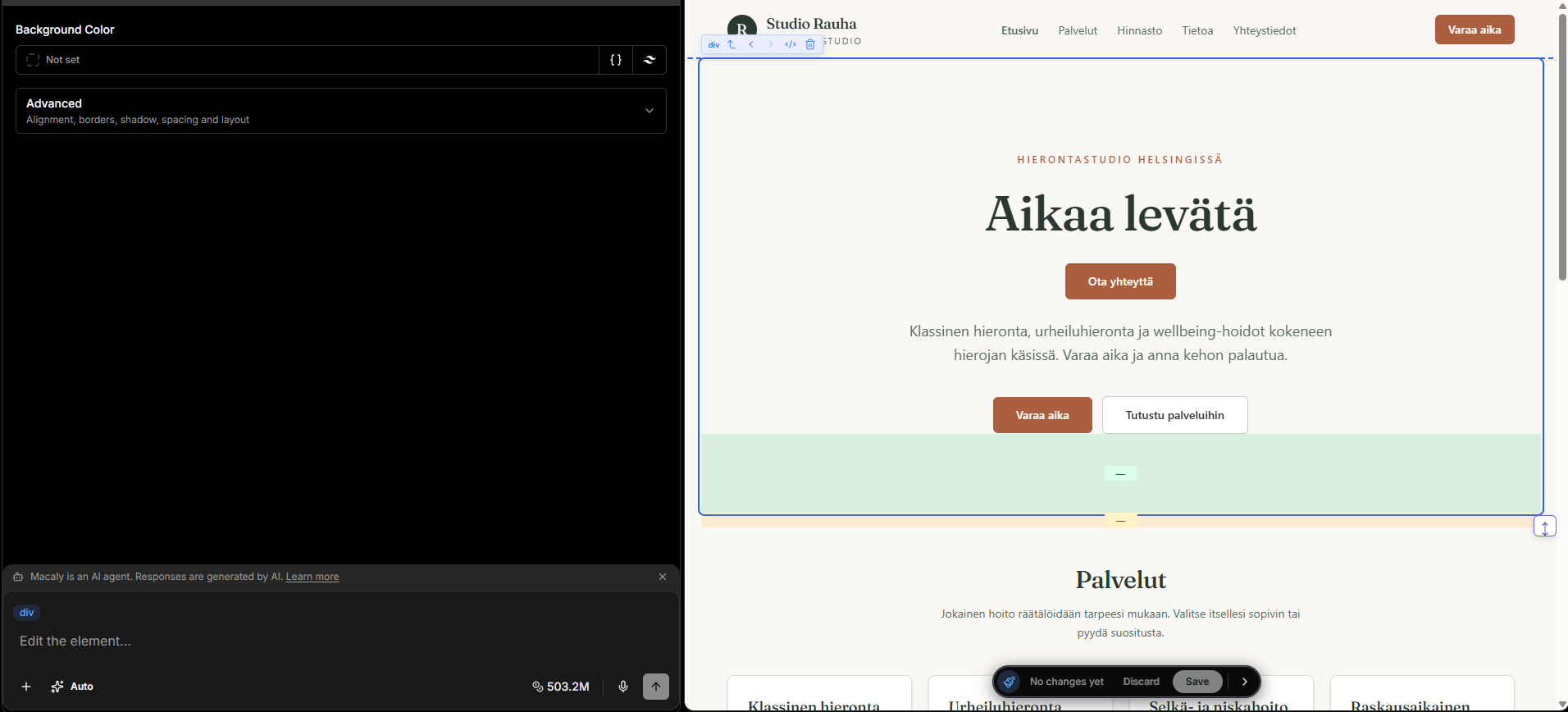
Edit design is particularly useful when you want to limit a change to one specific part of the project. The feature is used in the desktop view.
3. Edit text
Text in the project can be edited directly or you can ask Macaly to rewrite it.
You can change headings, body text, button labels, form text, user interface instructions and navigation labels, for example.
Rewrite this text to make it shorter and clearer. Keep the meaning unchanged.
Rewrite the instruction text in this view so it is easier for the user to understand.
4. Edit colours and visual design
You can change the visual appearance of individual elements or ask Macaly to make a broader design change.
You can change things such as colours, backgrounds, text appearance, element sizes, spacing, borders and layout.
Change the background of this section to light grey and add more space between the heading and the content.
Make the dashboard cards more compact and give them a more consistent visual style.
5. Change the project structure
With Macaly, you can add, remove and reorganise pages, views and sections.
For example, you can ask Macaly to add a new page, create a new application view, change the navigation or rearrange existing content.
Move the customer references after the Services section and add a contact button below them.
Add a “Customers” item to the sidebar and create a view where customers are shown in a list.
6. Replace or edit images
Images in the project can be replaced through Edit design. You can use your own image or ask Macaly’s AI to create or edit an image.
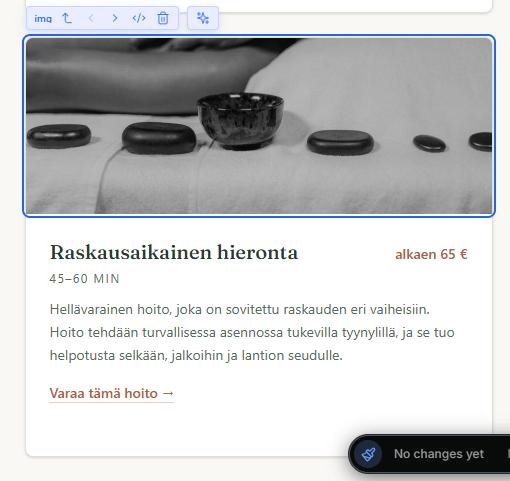

AI-assisted image and content changes may use Macaly credits.
7. Add new functions
Macaly can also be used to build new functionality into the project.
For example, on a website:
Add a contact form that asks for name, email address and message.
In a web application:
Add a form for creating a new customer. Save the customer’s name, email address and phone number.
Larger functionality may require changes to the project database or other technical parts. For larger changes, Plan mode is useful before implementation.
8. Use Ask AI on the selected element
In Edit design, you can target an AI instruction to the element you have selected.
Make this heading more persuasive.
Change this section to a two-column layout.
Organise the information in this view more clearly.
9. Review and accept the changes
When you make changes with Edit design, review the result before accepting it. You can save the changes or discard them if the result is not what you wanted.

10. Return to an earlier version if necessary
If a larger change is not what you expected, you do not need to rebuild the project from the beginning.
An earlier project version can be restored from the Macaly conversation history with Restore this version.

Good to remember
Use Edit design for small, precisely targeted changes. The Agent is better suited to situations where you want to change the structure, add functionality or make a change that affects several parts of the project.